Create a Simple CRM Using Notion (Beginner Tutorial for 2026)
Create a Simple CRM Using Notion (Beginner Tutorial for 2026)

A Customer Relationship Management (CRM) system doesn’t have to be expensive or complicated.
If you’re a freelancer, consultant, creator, agency owner, or small business, you can build a simple but powerful CRM using Notion—without paying for dedicated CRM software.
In this tutorial, you’ll learn how to create a CRM from scratch in Notion to manage leads, clients, follow-ups, sales pipelines, and customer information. By the end, you’ll have a system that keeps all your contacts and deals organized in one place.
Quick Overview
Best For: Freelancers, consultants, agencies, creators, startups, and small businesses
Difficulty: Beginner
Time Required: 20–30 minutes
Tools Needed: Notion
Watch the Full Video Tutorial
[Embed YouTube Video Here]
Why Use Notion as a CRM?
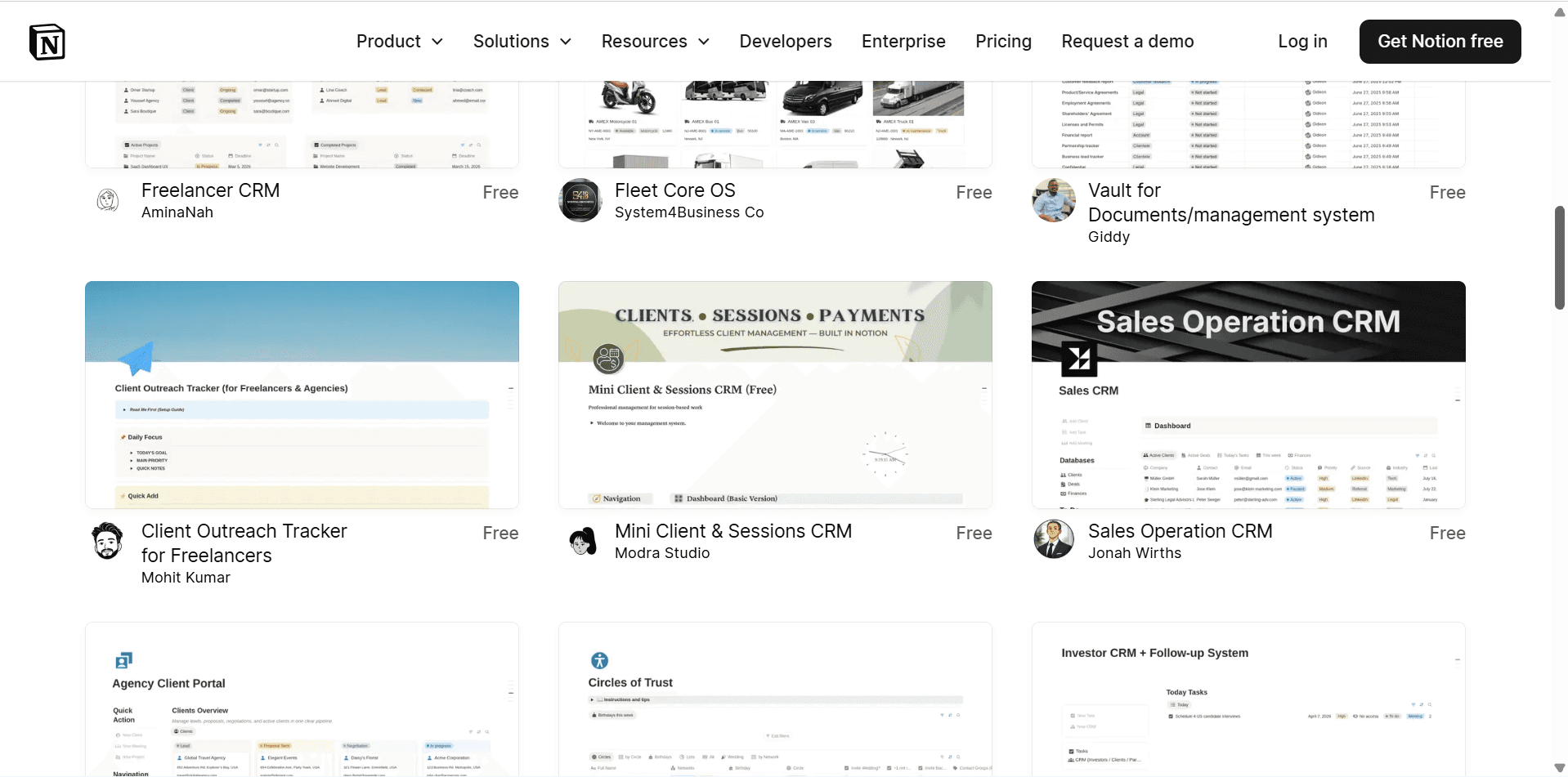
Many small businesses don’t need an advanced CRM with dozens of features. Instead, they need a simple way to:
Track leads
Store customer information
Monitor sales opportunities
Schedule follow-ups
Keep meeting notes
Stay organized
Notion gives you the flexibility to build a CRM that fits your workflow without paying monthly subscription fees for dedicated CRM software.
What You’ll Build
By the end of this tutorial, your CRM will include:
Lead database
Client database
Sales pipeline
Contact information
Meeting notes
Follow-up reminders
Deal values
Company information
Dashboard
Task tracking
Step 1: Create a New Page
Open Notion and create a new page.
Name it something like:
CRM
Sales Dashboard
Client Manager
Customer Database
Choose an icon and cover image if you’d like to personalize it.
Step 2: Create a Contacts Database
Your contacts database will store everyone you interact with.
Create a new Table Database and add the following properties:
Property | Type |
|---|---|
Name | Title |
Company | Text |
Phone | Phone |
Website | URL |
Status | Select |
Lead Source | Select |
Last Contact | Date |
Next Follow-up | Date |
Notes | Text |
This becomes the foundation of your CRM.
Step 3: Create Lead Status Options
Add a Select property called Status.
Suggested options:
New Lead
Contacted
Discovery Call
Proposal Sent
Negotiating
Won
Lost
These stages let you see exactly where each prospect is in your sales process.
Step 4: Add Lead Sources
Tracking where leads come from helps you understand which marketing channels work best.
Create another Select property called Lead Source.
Examples include:
Website
YouTube
LinkedIn
Facebook
Referral
Google Search
Email
Networking
Cold Outreach
Later, you can filter and analyze which channels generate the most clients.
Step 5: Create a Deals Database
Now build another Table Database called Deals.
Add these properties:
Property | Type |
|---|---|
Deal Name | Title |
Client | Relation |
Value | Number |
Stage | Select |
Expected Close Date | Date |
Probability | Number |
Notes | Text |
This database tracks your active opportunities.
Step 6: Link Contacts to Deals
Use a Relation property to connect your Contacts database with your Deals database.
Now every deal is linked directly to the client it belongs to.
For example:
John Smith → Website Redesign Project
This makes navigating between clients and projects much easier.
Step 7: Build a Sales Pipeline
Switch your Deals database to a Board View.
Group cards by Stage.
Suggested stages:
New Lead
Qualified
Proposal Sent
Negotiation
Won
Lost
You now have a Kanban-style sales pipeline similar to dedicated CRM software.
As deals progress, simply drag them into the next stage.
Step 8: Track Deal Value
Add a Number property named Deal Value.
Examples:
$500
$2,000
$10,000
This allows you to estimate future revenue and monitor your sales pipeline.
Step 9: Create Follow-Up Reminders
Following up consistently is one of the easiest ways to close more deals.
Add a Date property called Next Follow-up.
Whenever you finish a meeting or send a proposal, schedule your next follow-up date.
You can create filtered views showing only clients who need attention today.
Step 10: Add Meeting Notes
Every client should have a dedicated notes section.
Record details such as:
Meeting summaries
Client goals
Questions
Pain points
Budget
Next steps
Keeping notes inside your CRM means everything stays organized in one place.
Step 11: Create Tasks for Each Client
Create a separate Tasks Database.
Suggested properties:
Task
Assigned To
Due Date
Priority
Status
Related Client
Link tasks to your Contacts database using a Relation property.
Examples:
Send Proposal
Schedule Demo
Prepare Contract
Follow Up
Deliver Project
Step 12: Build Your CRM Dashboard
Now create a dashboard that gives you a complete overview.
Include linked database views such as:
Recent Leads
Shows newly added contacts.
Deals in Progress
Displays active sales opportunities.
Follow-Ups Today
Lists contacts who need a follow-up.
Upcoming Meetings
Displays scheduled meetings.
Open Tasks
Shows incomplete work.
Recently Won Deals
Highlights closed sales.
Your dashboard becomes the homepage of your CRM.
Step 13: Add Useful Filters
Filters help you focus on what matters.
Examples:
High-value deals
Overdue follow-ups
New leads
Active clients
Won deals
Lost opportunities
Different views make your CRM easier to navigate.
Step 14: Create Templates
Templates save time when adding new leads or clients.
For example, your New Client Template might automatically include:
Welcome checklist
Discovery questions
Proposal template
Contract checklist
Onboarding tasks
This creates a consistent workflow for every new customer.
Optional Enhancements
As your business grows, you can expand your CRM with additional databases.
Examples include:
Invoices
Track payment status and invoice numbers.
Contracts
Store signed agreements.
Projects
Link each client to active projects.
Content
Track marketing campaigns related to specific clients.
Support Requests
Manage customer issues and tickets.
Automating Your CRM
While Notion doesn’t have built-in automation for every workflow, you can connect it with automation tools like Zapier or Make.
Examples include:
Add website leads automatically
Create tasks from form submissions
Send Slack notifications for new leads
Sync Google Calendar meetings
Connect with email marketing tools
Automation reduces manual data entry and keeps your CRM up to date.
Advantages of Using Notion as a CRM
Easy to customize
Affordable
Beginner-friendly
Combines notes and databases
Great for individuals and small teams
Flexible views (Table, Board, Calendar, List)
Templates speed up workflows
Limitations
Notion works well as a lightweight CRM, but it lacks some features found in dedicated CRM platforms.
These include:
Advanced sales forecasting
Built-in email tracking
Automatic lead scoring
Native calling features
Deep reporting and analytics
As your business scales, you may eventually need tools like HubSpot, Pipedrive, or Salesforce.
Who Should Use This CRM?
This setup is ideal for:
Freelancers
Agencies
Consultants
Coaches
Creators
Small businesses
Solopreneurs
Startups
If you manage a small number of leads and clients, this Notion CRM provides more than enough functionality.
Can Notion replace a CRM?
For freelancers and small businesses, yes. Notion can handle contact management, sales pipelines, follow-ups, notes, and basic client management effectively.
Is this CRM free?
You can build this system using Notion’s free plan, although larger teams may benefit from paid plans with additional collaboration features.
Can I share my CRM with my team?
Yes. Notion allows you to invite team members, assign permissions, and collaborate in real time.
Can I automate this CRM?
Yes. By connecting Notion with automation platforms like Zapier or Make, you can automate lead capture, reminders, notifications, and more.
Final Verdict
Building a CRM in Notion is one of the simplest and most cost-effective ways to manage leads and clients.
While it doesn’t replace enterprise-level CRM software for large sales teams, it offers more than enough flexibility for freelancers, agencies, consultants, and growing businesses.
With a well-structured database, sales pipeline, follow-up system, and dashboard, you’ll have a centralized workspace that helps you stay organized, nurture relationships, and close more deals—all without paying for expensive CRM software.
Frequently Asked Questions
Related Articles
My Notion Workflow for Running an Online Business
Notion Tutorial for Beginners
Notion vs Obsidian vs Evernote: Which Knowledge System Wins?
Building a One-Person Business Operating System From Scratch
Create a No-Code Business Automation System
HubSpot vs Pipedrive: Which CRM Should You Choose?
Best CRM Software for Small Businesses in 2026
Zapier vs Make: How to Automate Your Business


