DocHub Fillable Form Tutorial:
How to Create and Edit Fillable PDF Forms in 2026

Creating fillable PDF forms is one of the easiest ways to collect information, signatures, and documents from clients, employees, or customers.
Instead of printing paperwork, filling it out by hand, and scanning it back, you can use DocHub to create interactive PDF forms that people can complete online.
DocHub makes it simple to upload PDFs, add fillable fields, request signatures, and securely share documents all from your web browser.
In this beginner-friendly tutorial, you’ll learn how to create a fillable PDF form in DocHub, add text fields and signatures, share your form, and manage completed documents.
Quick Overview
Best For: Creating fillable PDF forms, editing PDFs, electronic signatures, and document management
Ideal Users: Small businesses, freelancers, HR teams, real estate agents, legal professionals, educators, and consultants
Pricing: Free plan available with paid plans for advanced features
Watch the Full Video Tutorial
What Is DocHub?
DocHub is an online PDF editor and electronic signature platform that allows users to edit, annotate, sign, and share PDF documents.
One of its most useful features is the ability to turn standard PDF documents into interactive fillable forms.
You can use DocHub to:
Create fillable PDFs
Add signature fields
Collect customer information
Edit PDF documents
Request electronic signatures
Annotate documents
Share files securely
Store completed forms
Everything works directly in your browser, so there’s no software to install.
Creating Your DocHub Account
Getting started only takes a few minutes.
Step 1
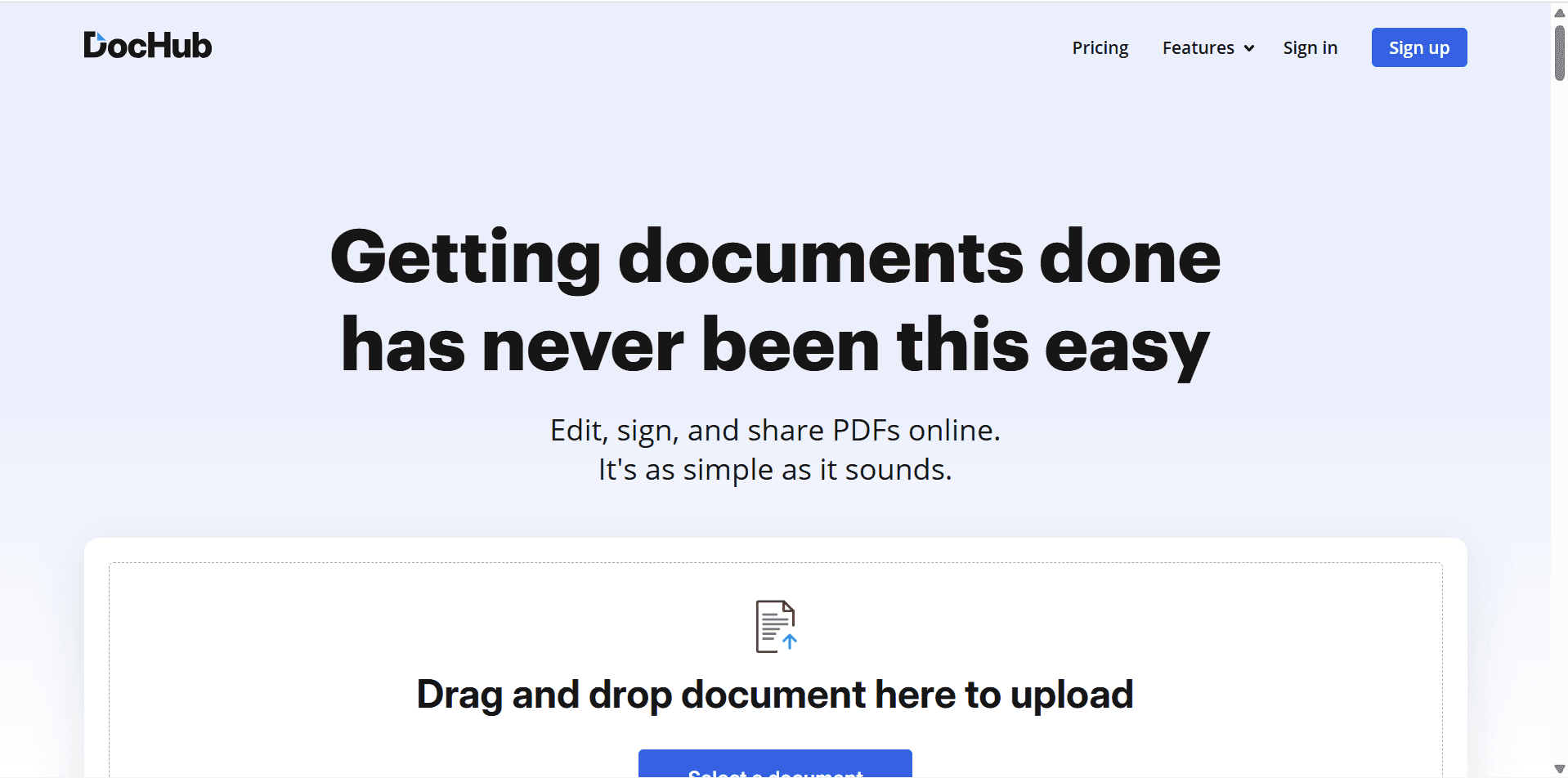
Visit the DocHub website.
Step 2
Create a free account.
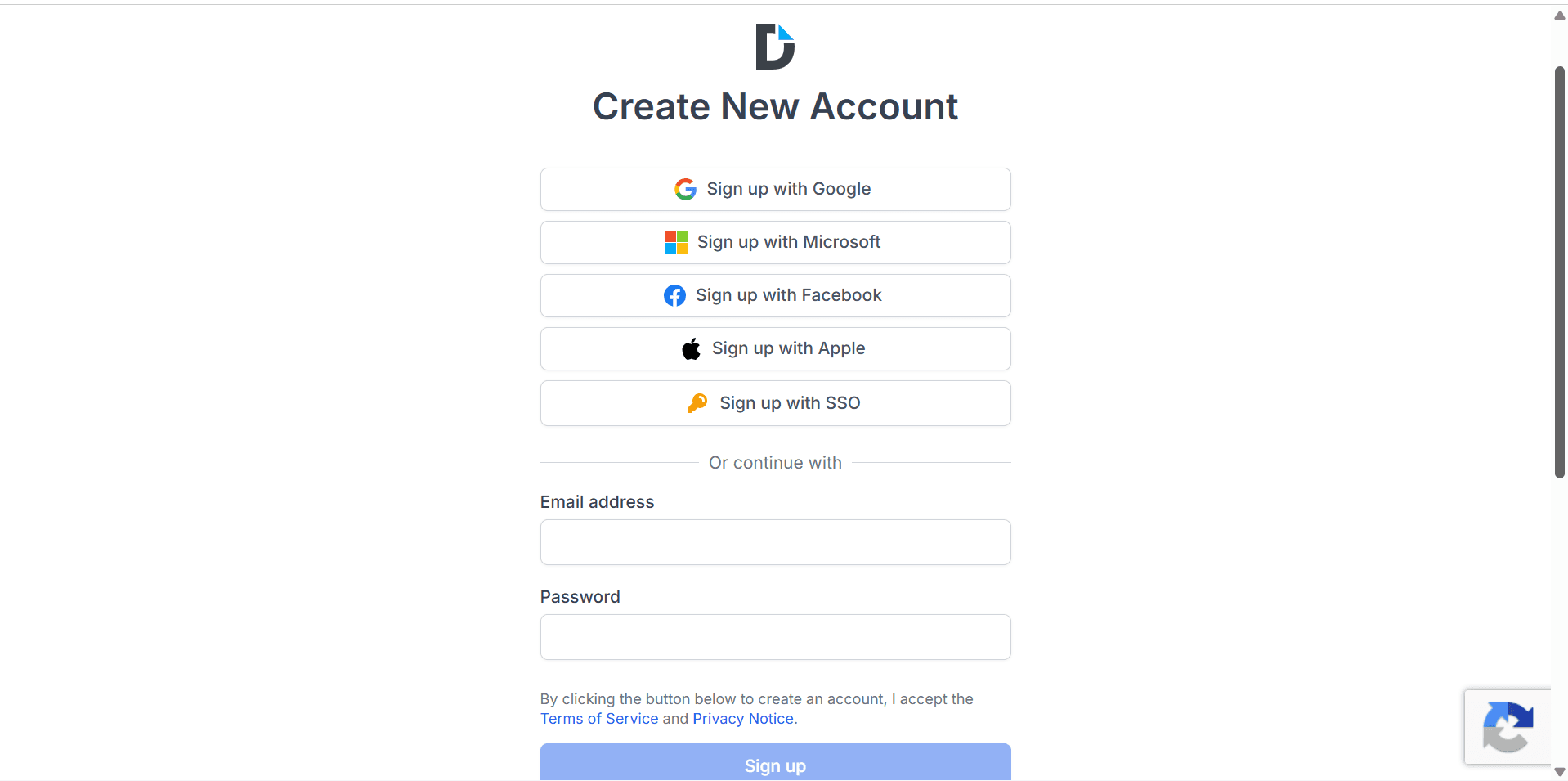
You can sign up using:
Google
Microsoft
Apple
Email
Step 3
Verify your account if required.
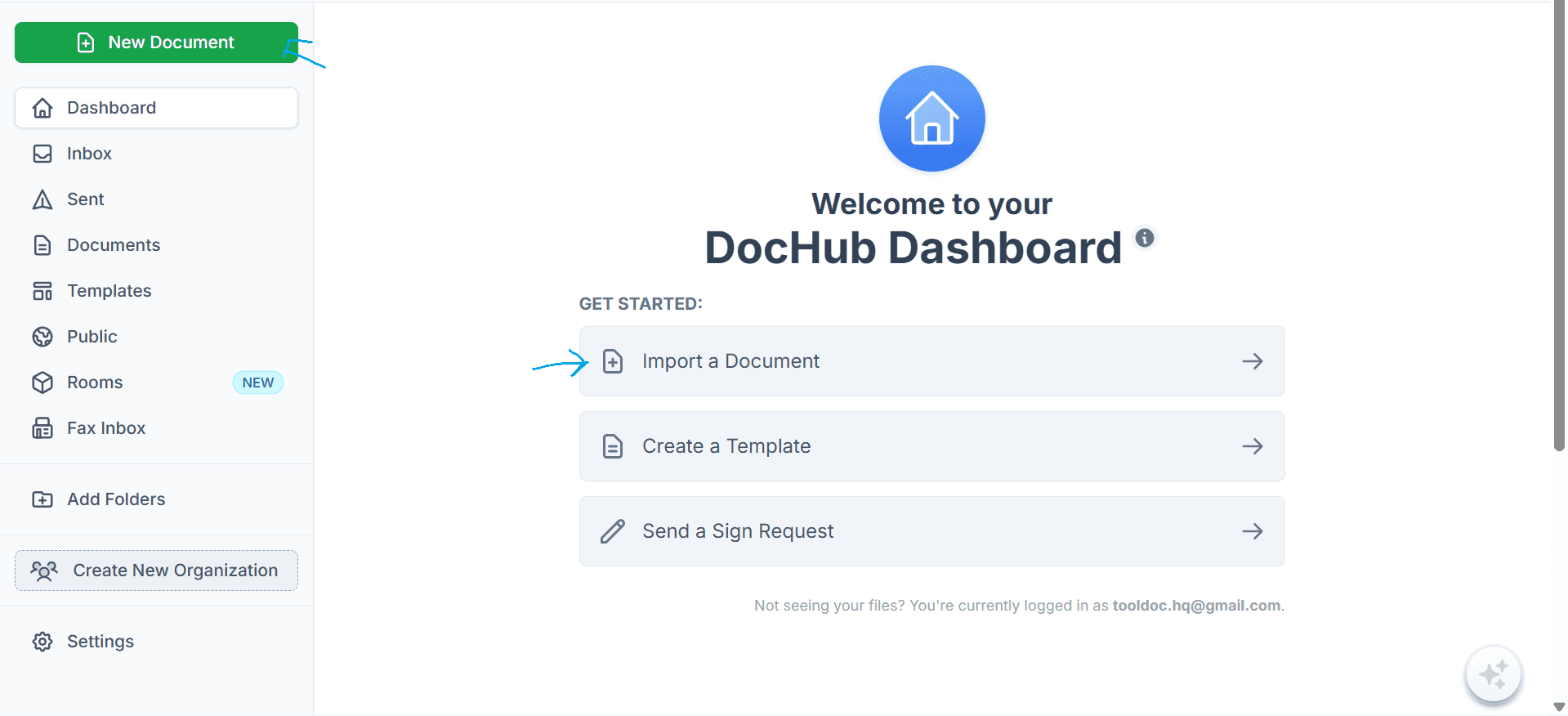
Once you’re signed in, you’ll arrive at the DocHub dashboard.
Uploading Your PDF
Before creating a fillable form, you’ll need a PDF document.
Step 1
Click New Document or Upload Document.
Step 2
Choose your PDF from your computer.
You can also import documents from:
Google Drive
Dropbox
OneDrive
Gmail
After uploading, the document opens in the DocHub editor.
Understanding the Editor
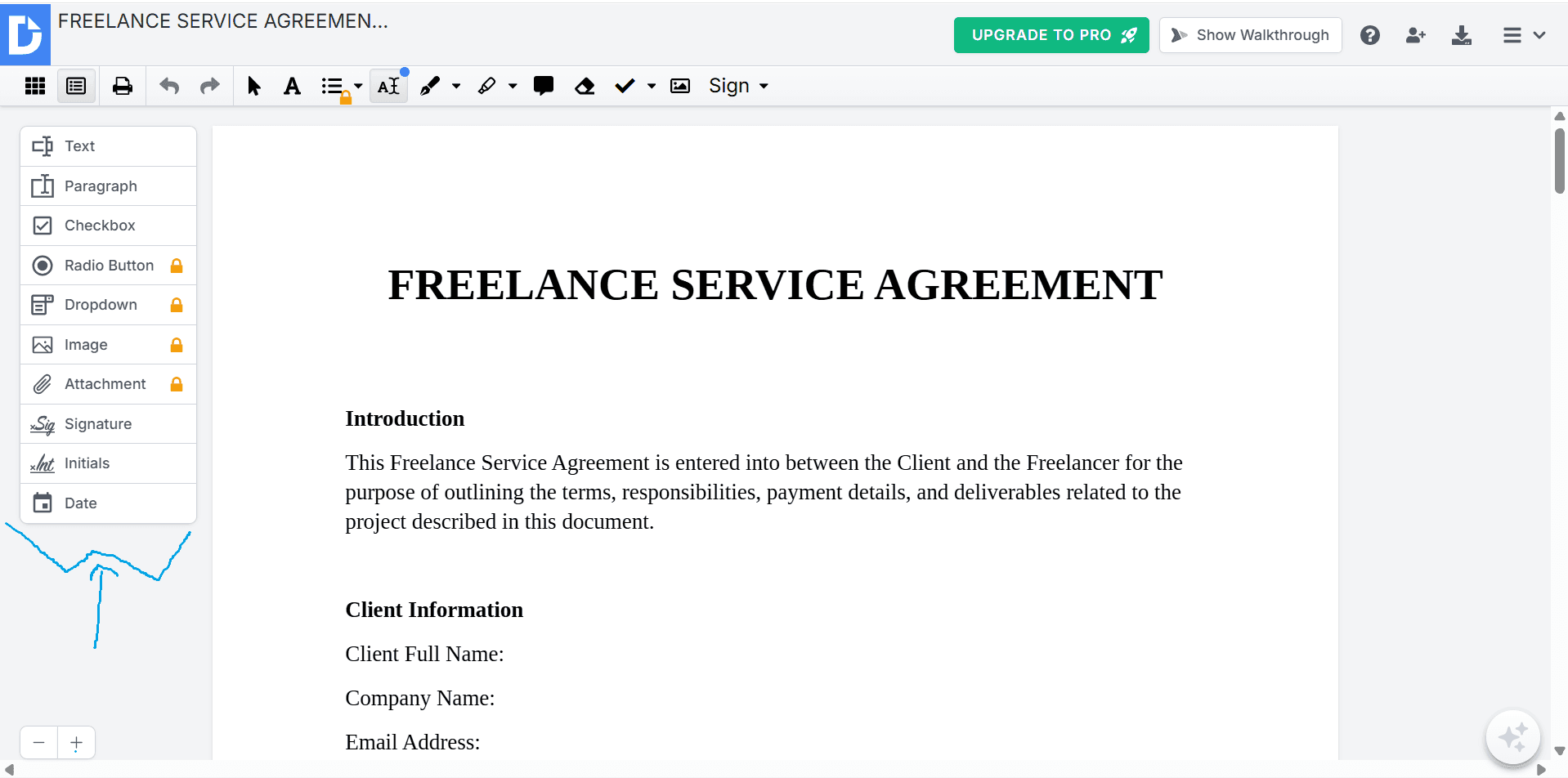
The editor includes several useful tools.
Common options include:
Text
Signature
Initials
Checkbox
Date
Highlight
Whiteout
Images
Comments
Text fields
Most of your work will happen from the toolbar.
Creating Fillable Text Fields
Let’s make the PDF interactive.
Step 1
Select the Text Field tool.
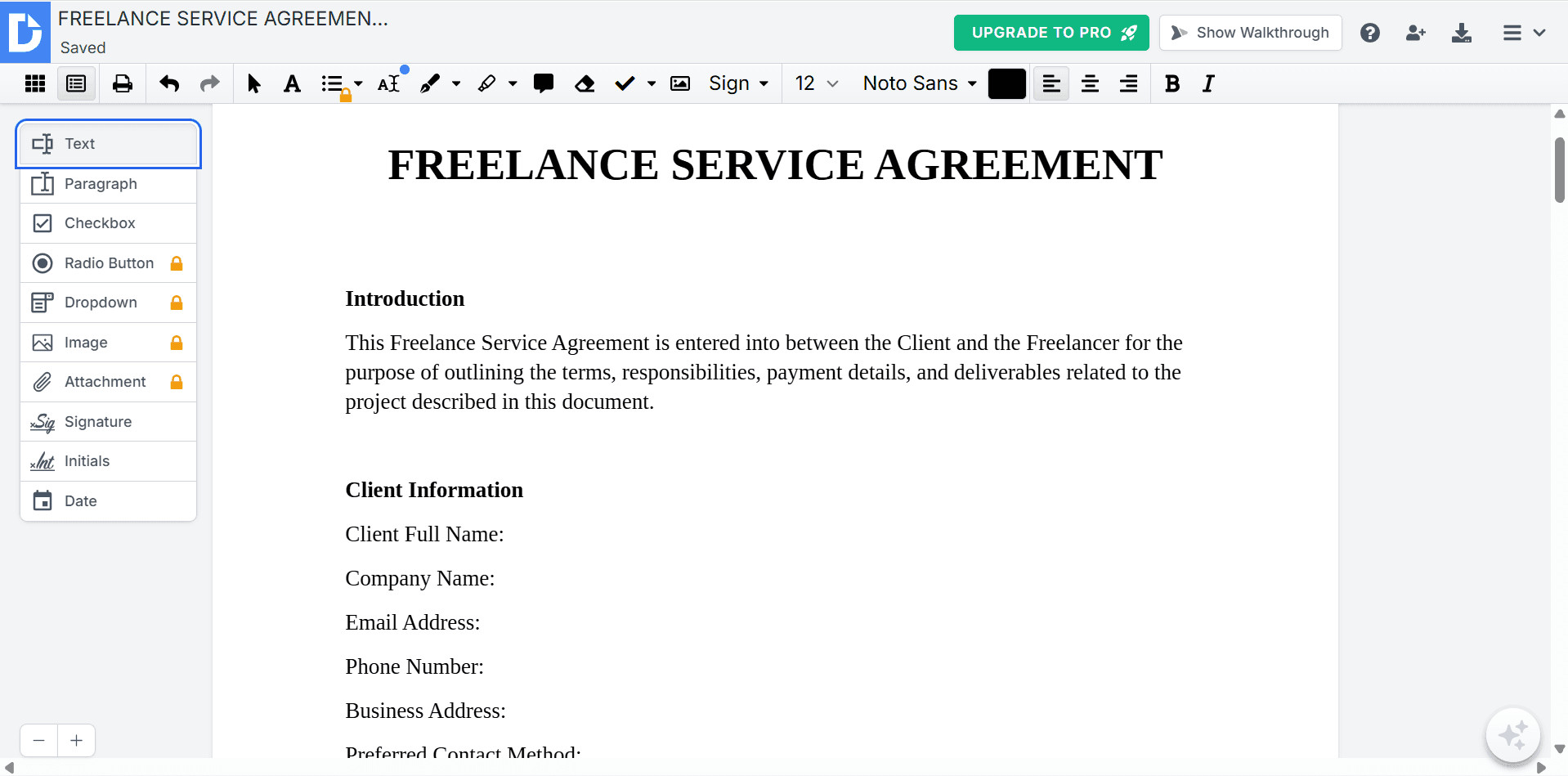
Step 2
Click anywhere on the document.
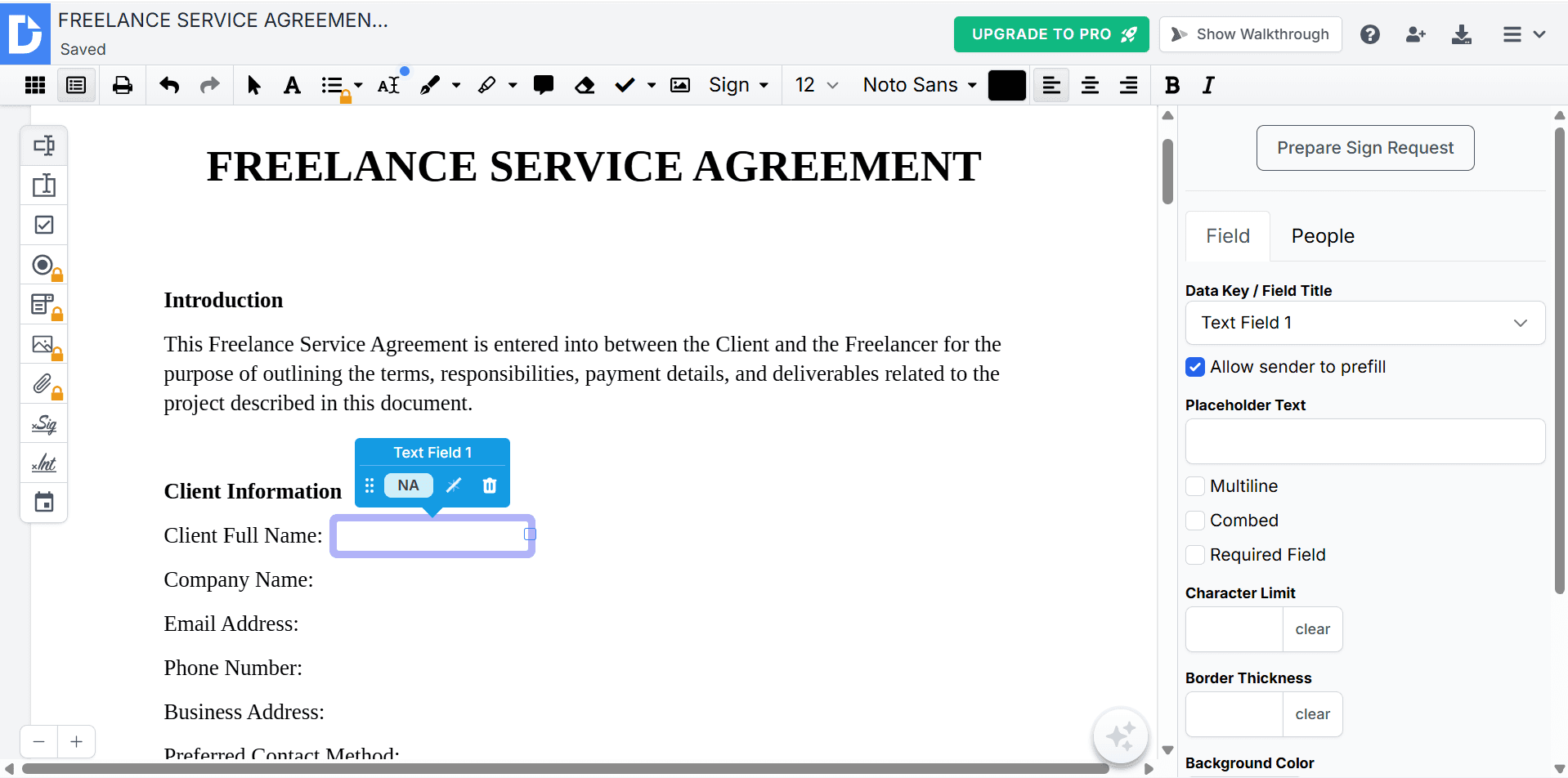
Step 3
Resize the field.
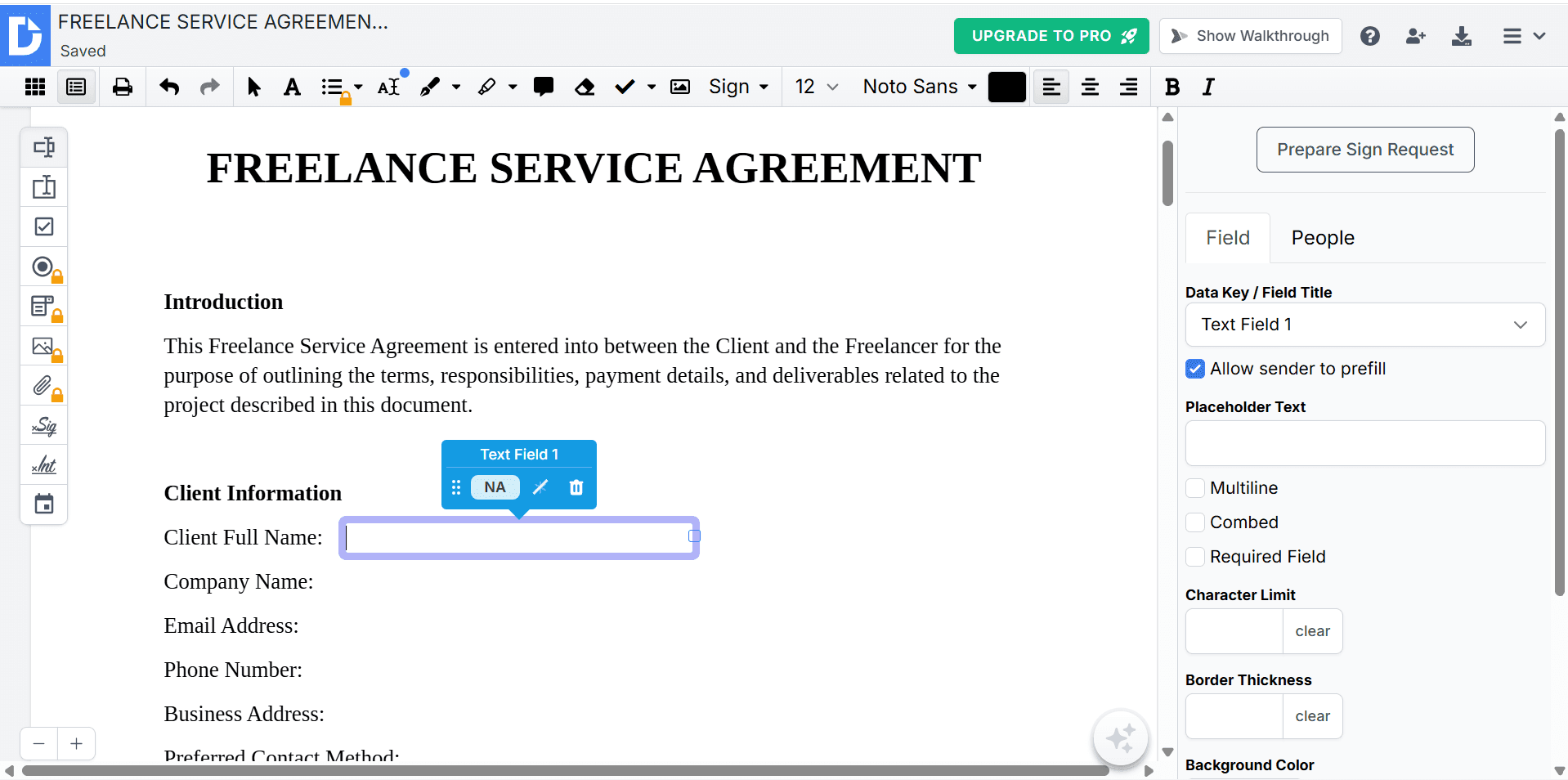
Step 4
Repeat for every section users need to complete.
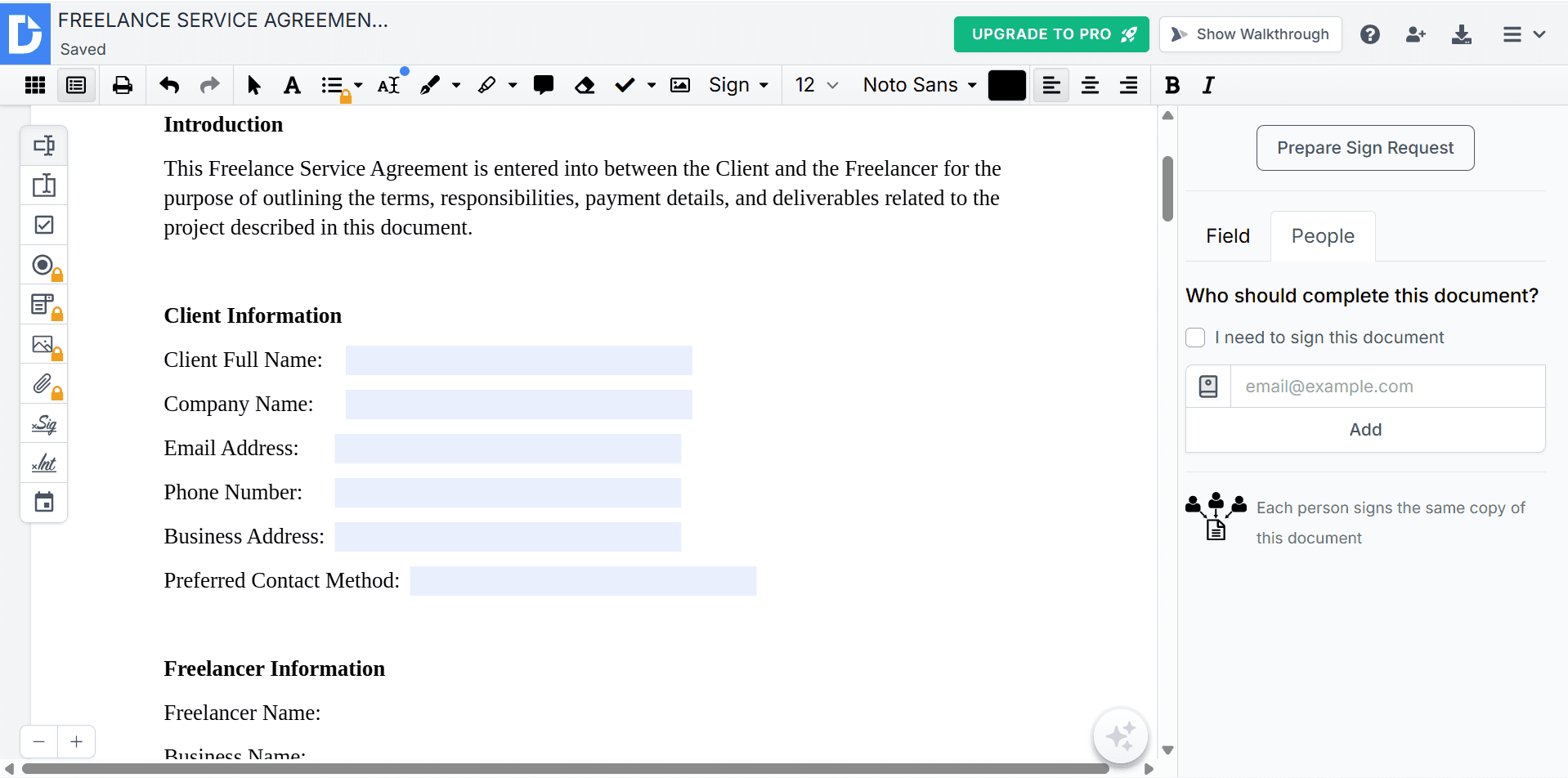
Common examples include:
Name
Email
Address
Phone number
Company
Job title
Visitors can now type directly into those fields.
Adding Checkboxes
Checkboxes are useful for forms requiring selections.
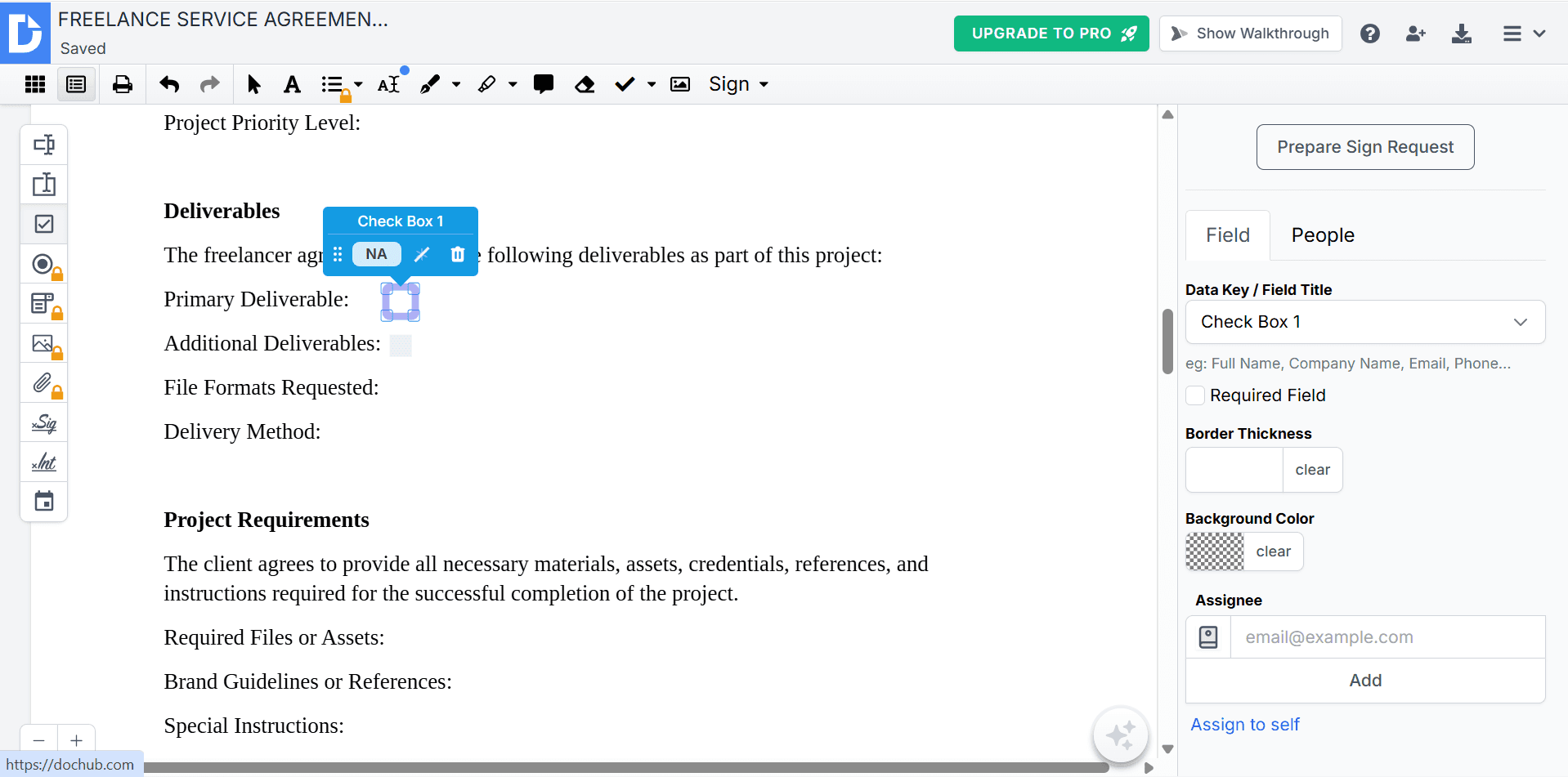
Examples include:
Accept Terms
Newsletter Subscription
Product Options
Agreement Confirmation
To add one:
Select the Checkbox tool.
Click the desired location.
Resize if necessary.
Creating Dropdowns and Selection Fields
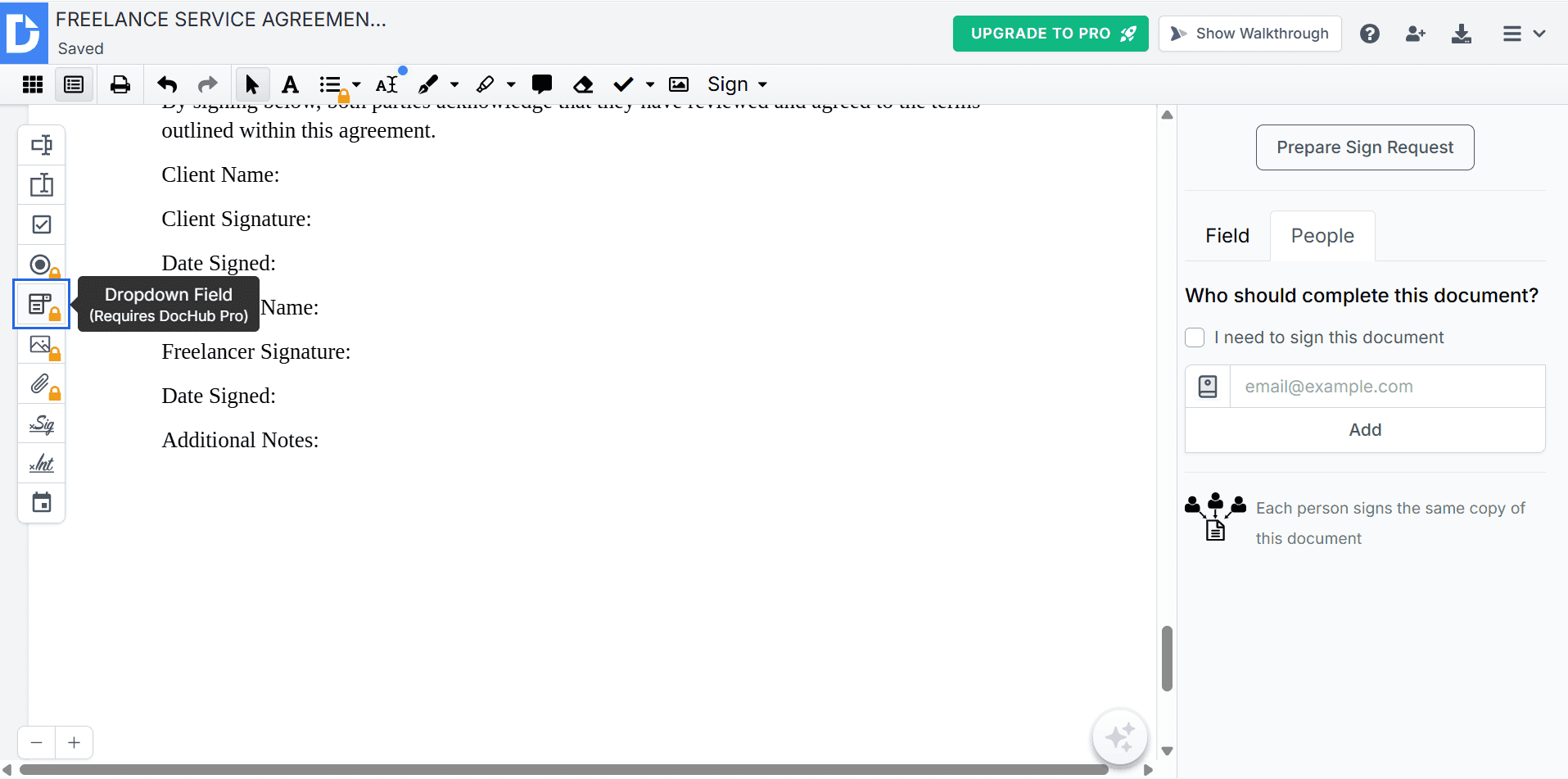
Depending on your document, you may want users to choose from predefined options.
Examples include:
Department
Country
Service Package
Appointment Type
Using selection fields helps reduce data entry errors.
Adding Date Fields

Many business forms require dates.
Examples include:
Contract date
Appointment date
Application date
Start date
Simply place a date field wherever users should enter a date.
Adding Signature Fields
Electronic signatures are one of DocHub’s most popular features.
To add a signature field:
Step 1
Choose the Signature tool.

Step 2
Click the location where a signature should appear.
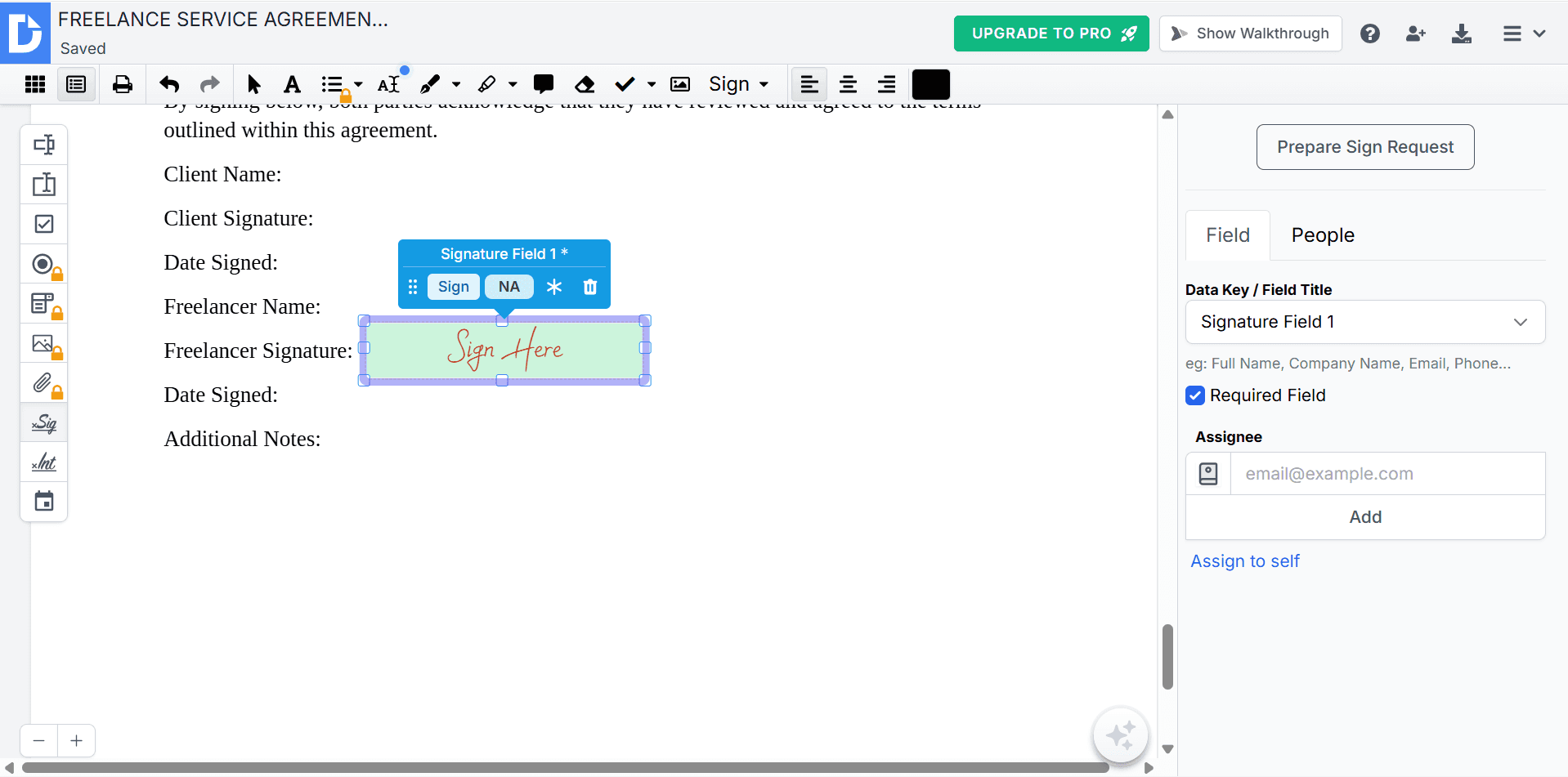
Step 3
Resize the signature box.
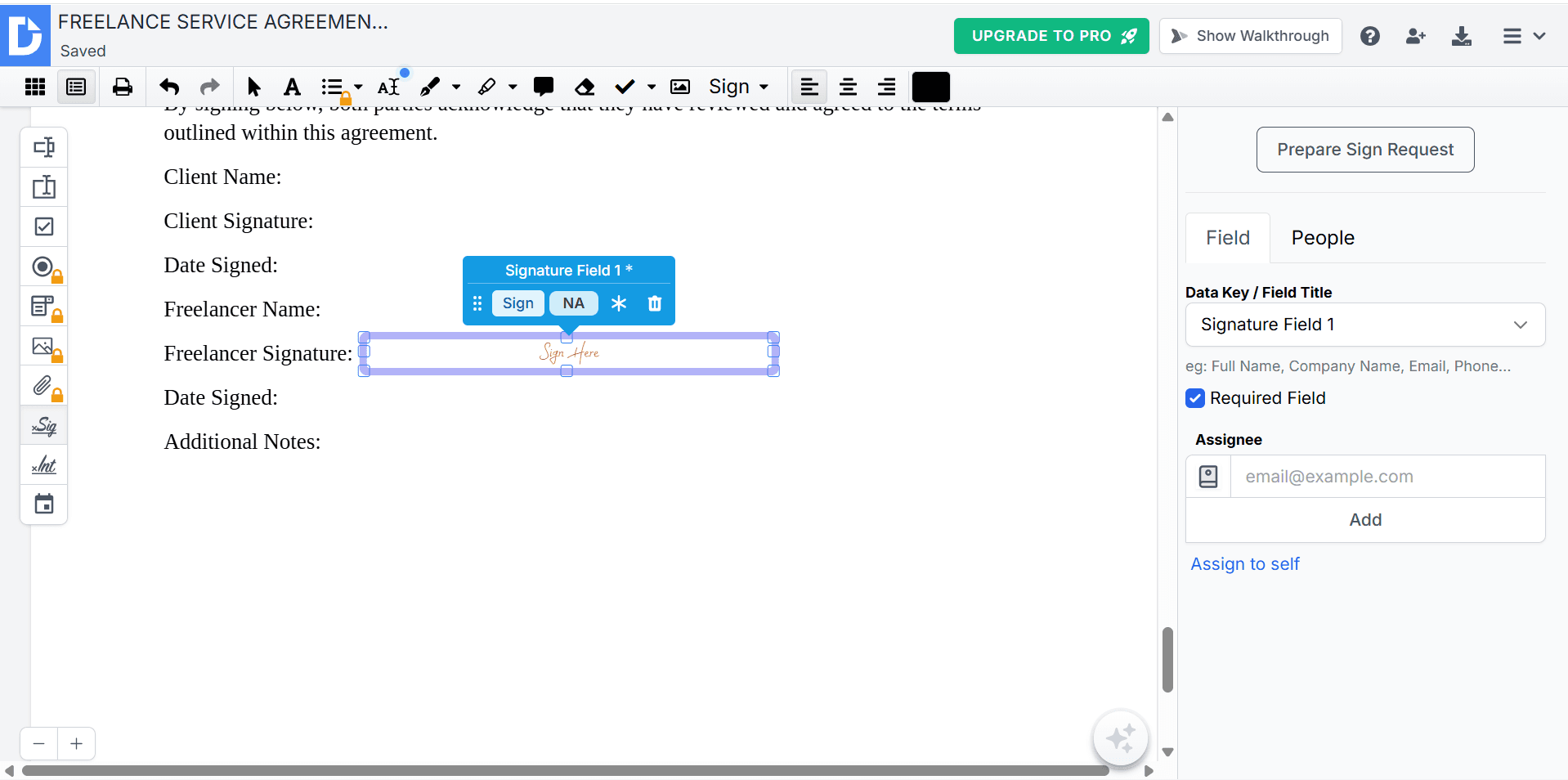
Recipients will be able to sign digitally using:
Mouse
Touchscreen
Trackpad
Uploaded signature
Typed signature
Adding Initial Fields
Many contracts require initials on multiple pages.
Instead of asking users to sign repeatedly, add initial fields wherever needed.
This is especially useful for:
Contracts
Rental agreements
Legal documents
Employment paperwork
Customizing Your Form
DocHub allows you to organize your form for a better user experience.
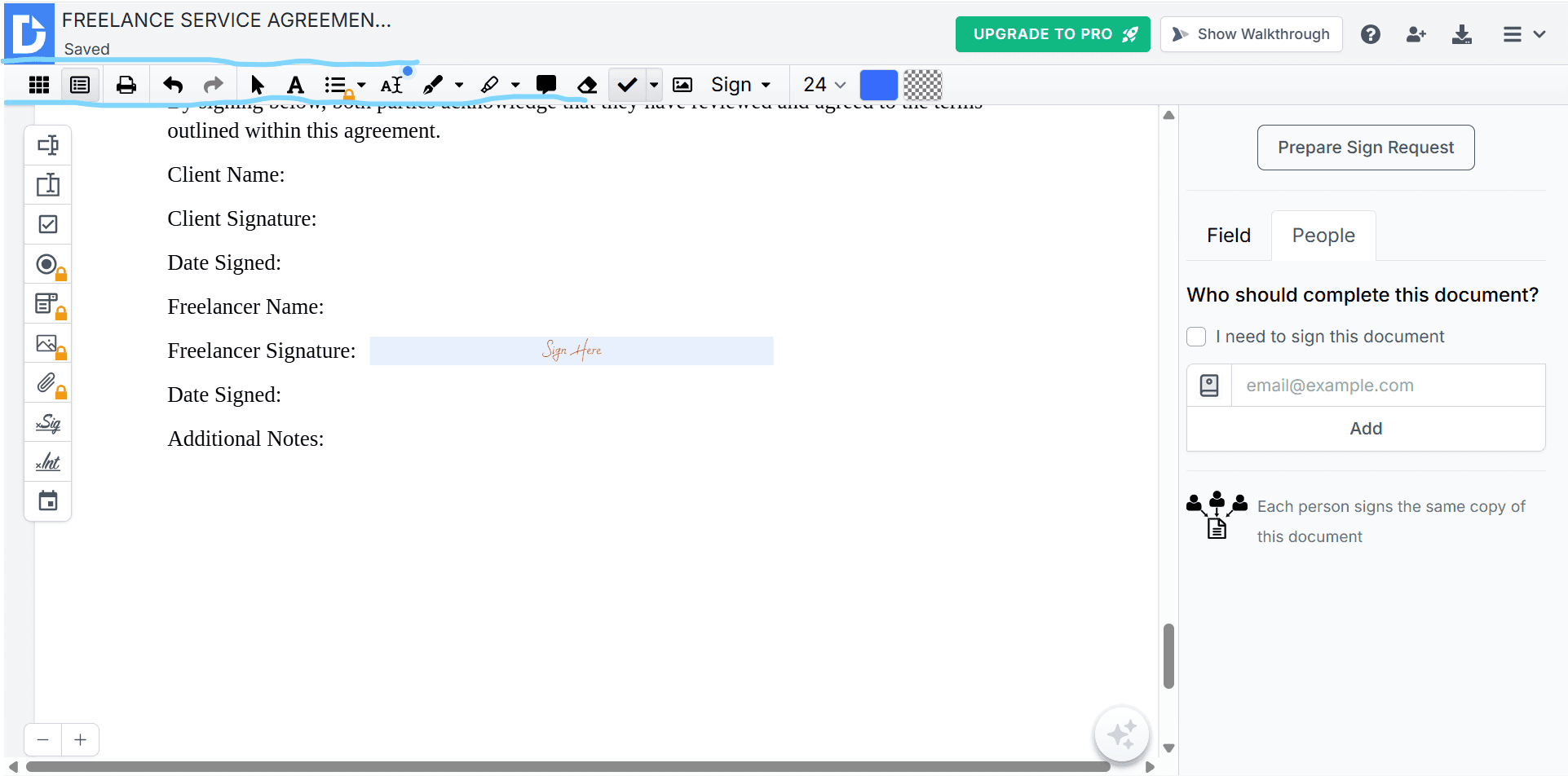
You can:
Resize fields
Move elements
Duplicate fields
Change fonts
Adjust alignment
Delete unnecessary objects
Taking a few extra minutes to organize the layout makes forms easier to complete.
Saving Your Form
Once you’ve finished editing:
Click Save.
Choose a file name.
Store it inside your DocHub account.
Your fillable PDF is now ready to share.
Sharing Your Fillable Form
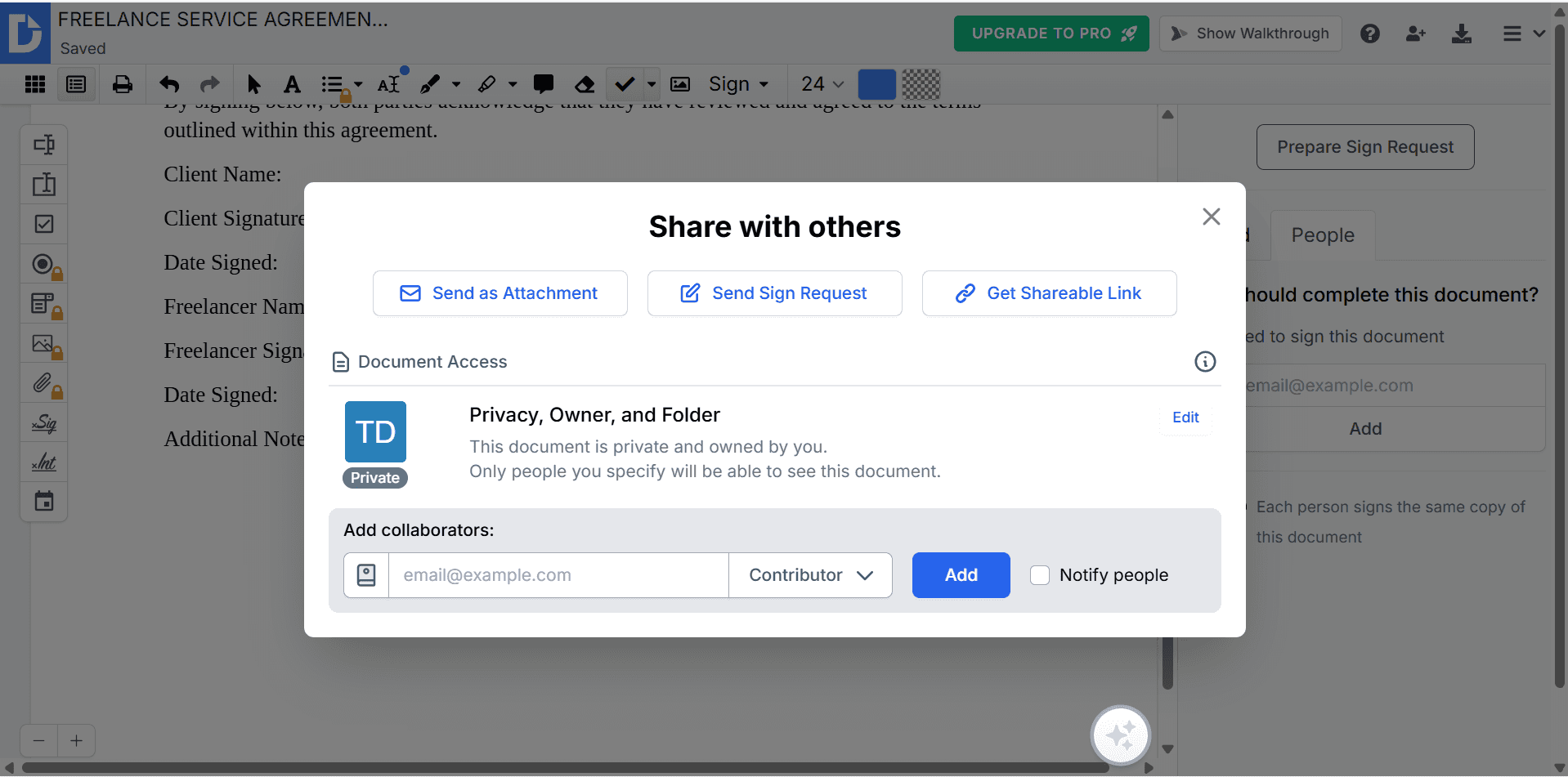
There are several ways to distribute your document.
You can:
Generate a shareable link
Email the document
Download the PDF
Export to Google Drive
Export to Dropbox
Recipients don’t need complicated software to complete the form.
Requesting Electronic Signatures
Instead of sending documents manually, you can request signatures directly.
Step 1
Click Request Signature.
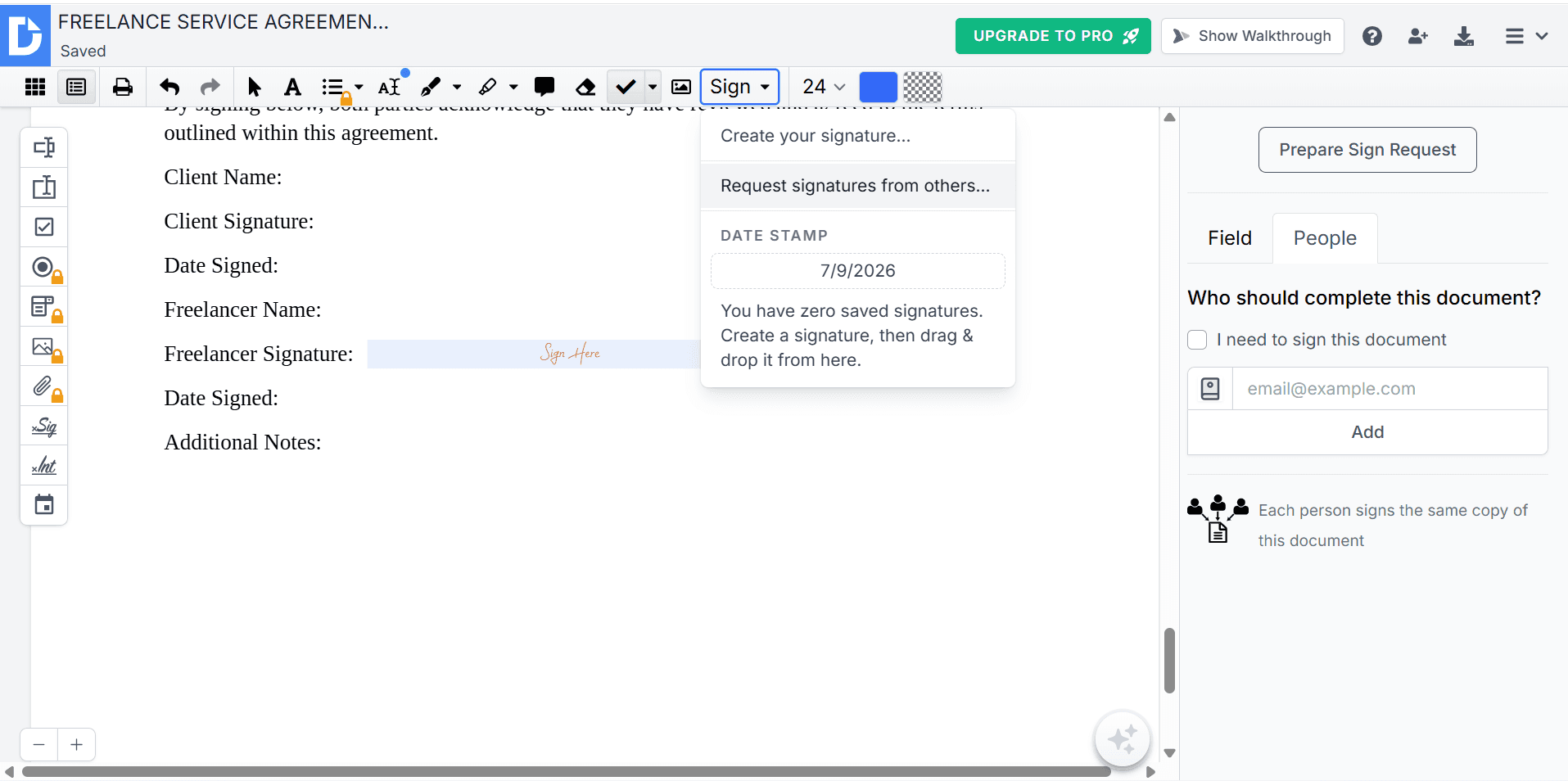
Step 2
Enter the recipient’s email.
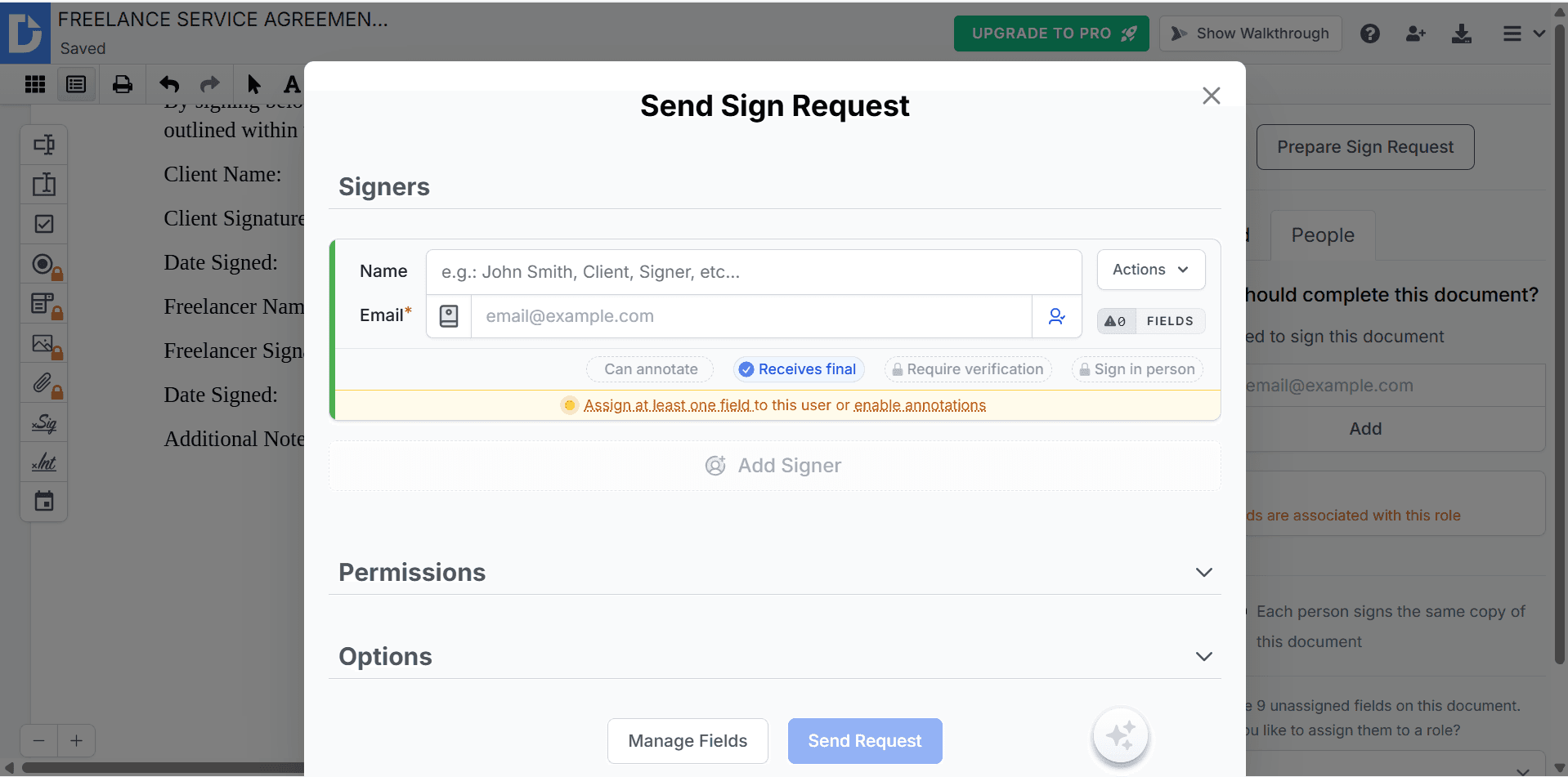
Step 3
Add an optional message.
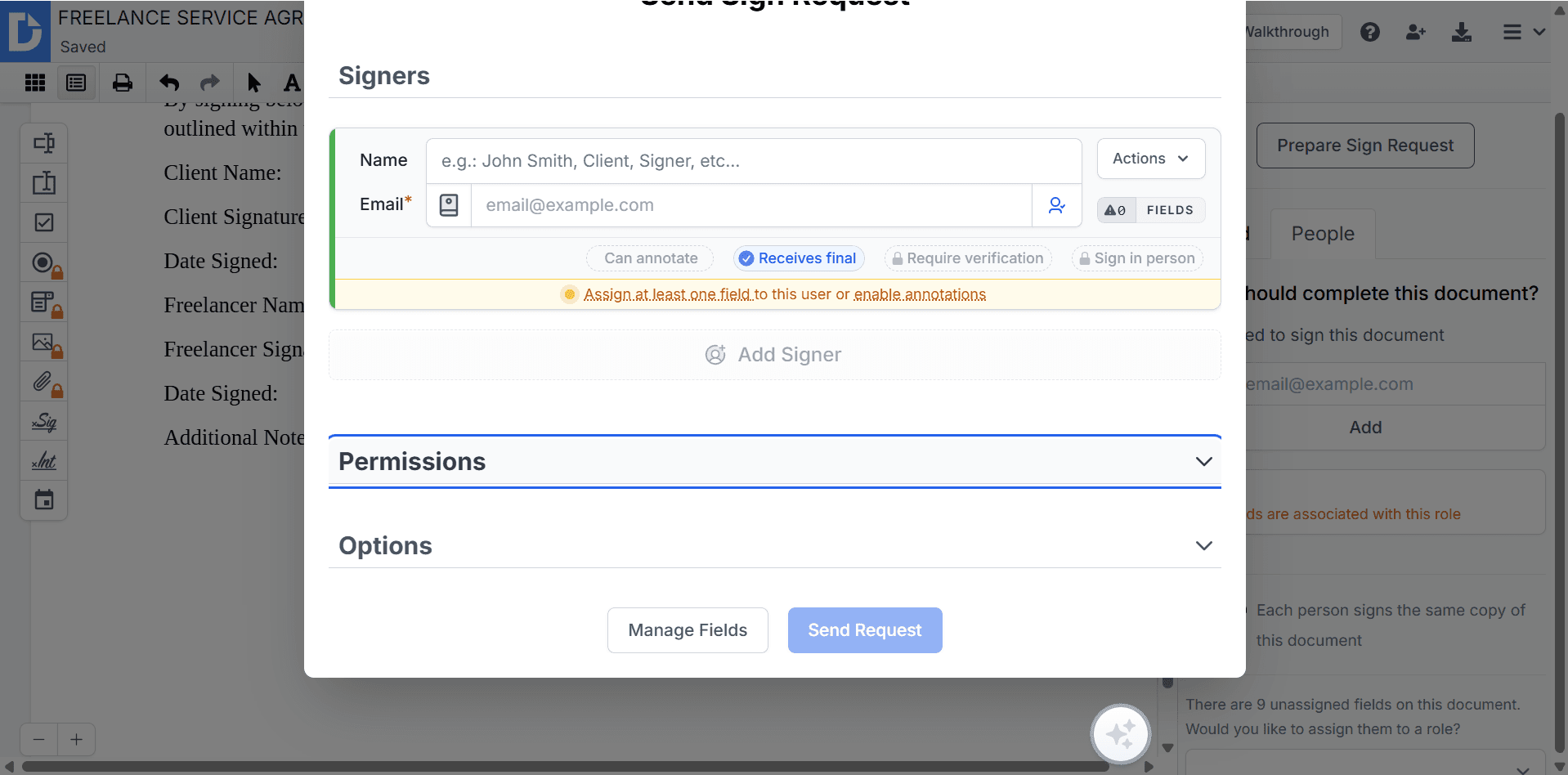
Step 4
Send the request.
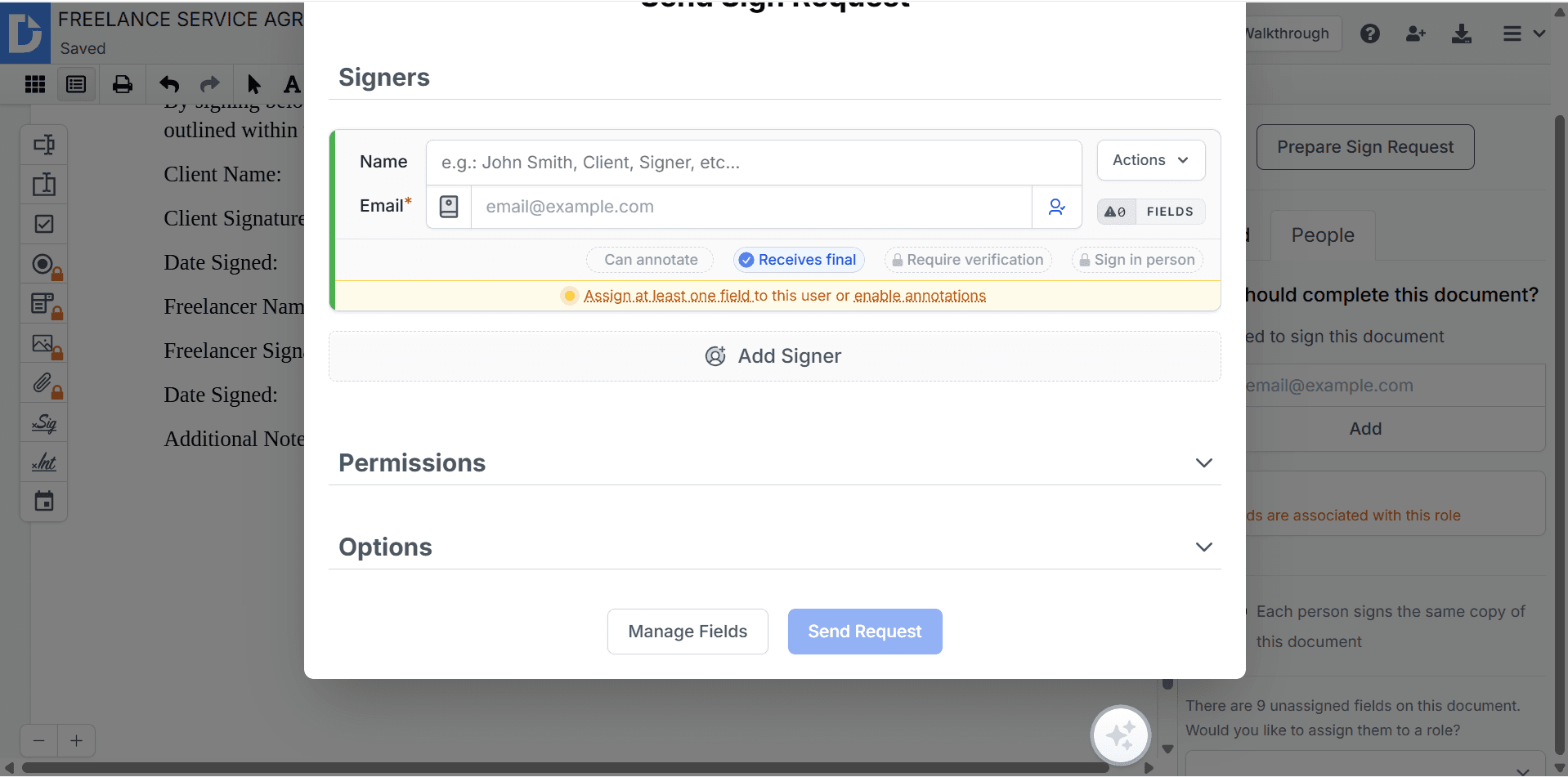
Recipients receive an email containing a secure link to review and sign the document.
Tracking Document Status
DocHub lets you monitor documents after sending them.
You can see when a document has been:
Sent
Opened
Viewed
Signed
Completed
This helps eliminate follow-up emails asking whether someone received your document.
Collaborating with Others
If multiple people need to review a document, DocHub allows collaboration through:
Comments
Shared editing
Annotations
Version history
This is especially useful for teams working on contracts or client documents.
Common Use Cases
DocHub is widely used for:
Employment applications
Client onboarding forms
Contracts
Service agreements
Rental applications
Medical forms
School documents
Tax forms
Consent forms
Real estate paperwork
Integrations
DocHub integrates with several popular productivity platforms.
Examples include:
Google Drive
Dropbox
Gmail
Google Classroom
OneDrive
These integrations make document management much easier.
DocHub Pricing
Free Plan
Includes:
PDF editing
Basic signatures
Document uploads
Cloud storage integrations
Ideal for individuals and occasional users.
Pro Plan
Adds:
Unlimited document signing
Advanced editing
Premium templates
Additional storage
Enhanced document management
Suitable for professionals and businesses with regular document workflows.
For the latest pricing, visit the DocHub website.
Pros and Cons
Pros
Easy to use
Excellent PDF editing tools
Fast fillable form creation
Secure electronic signatures
Cloud storage integrations
No software installation required
Free plan available
Cons
Some advanced features require a paid subscription
Limited workflow automation compared to enterprise document platforms
Collaboration tools are more basic than some competitors
Is DocHub Worth It?
For freelancers, small businesses, educators, legal professionals, and anyone working with PDF documents, DocHub offers an excellent balance of simplicity and functionality.
Its fillable forms, electronic signature tools, and cloud integrations make it easy to digitize paperwork without investing in expensive document management software.
If you regularly send contracts, applications, agreements, or forms, DocHub can save significant time while creating a more professional experience for your clients.
Final Verdict
DocHub remains one of the easiest platforms for creating fillable PDF forms in 2026.
It combines PDF editing, electronic signatures, document sharing, and cloud storage into a straightforward platform that’s accessible to both beginners and professionals.
Whether you’re creating contracts, onboarding documents, consent forms, or customer applications, DocHub provides all the essential tools needed to build and manage digital documents efficiently.
Related Articles
Best Electronic Signature Software in 2026
DocHub Review
PandaDoc vs DocHub
Adobe Acrobat vs DocHub
Best PDF Editors for Business


